Widgets and Live Activity: take out and shop without opening Stocker
· 4 min read
The most common thing you do in Stocker is take out one piece: milk from the fridge, a roll of paper from the bathroom. Since the November 2026 version you can do it straight from the iPhone Home Screen, and in the shop your shopping list is on the Lock Screen and in the Dynamic Island.
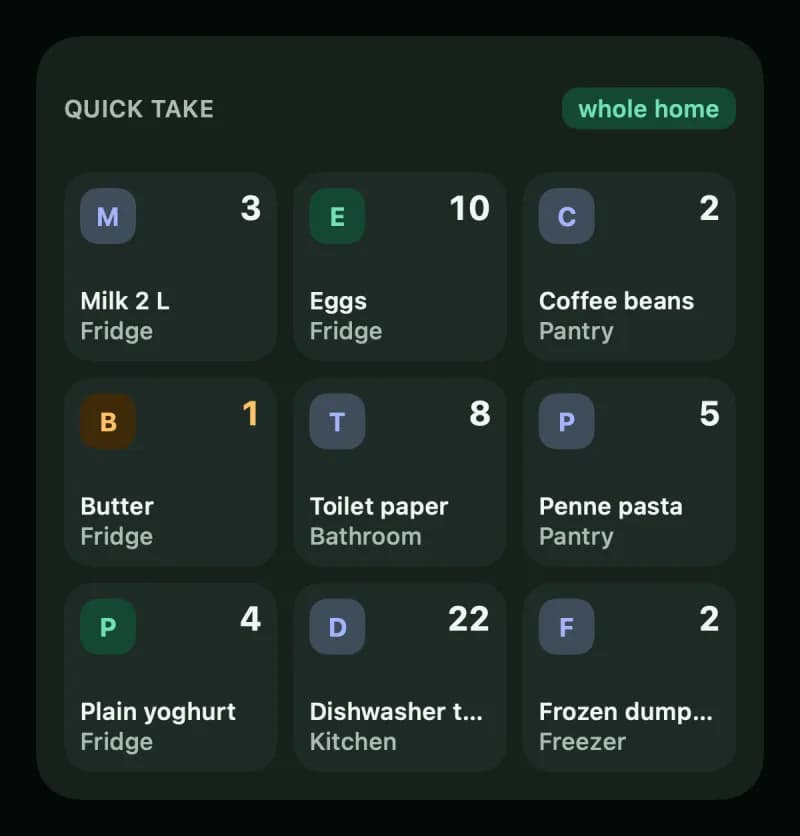
The Quick take widget: a tap is −1
The widget shows the products you take out most often across your home, with the number of pieces and the place. The small widget has 4 tiles, the large one 9. A tap on a tile takes one piece out of stock without opening the app.
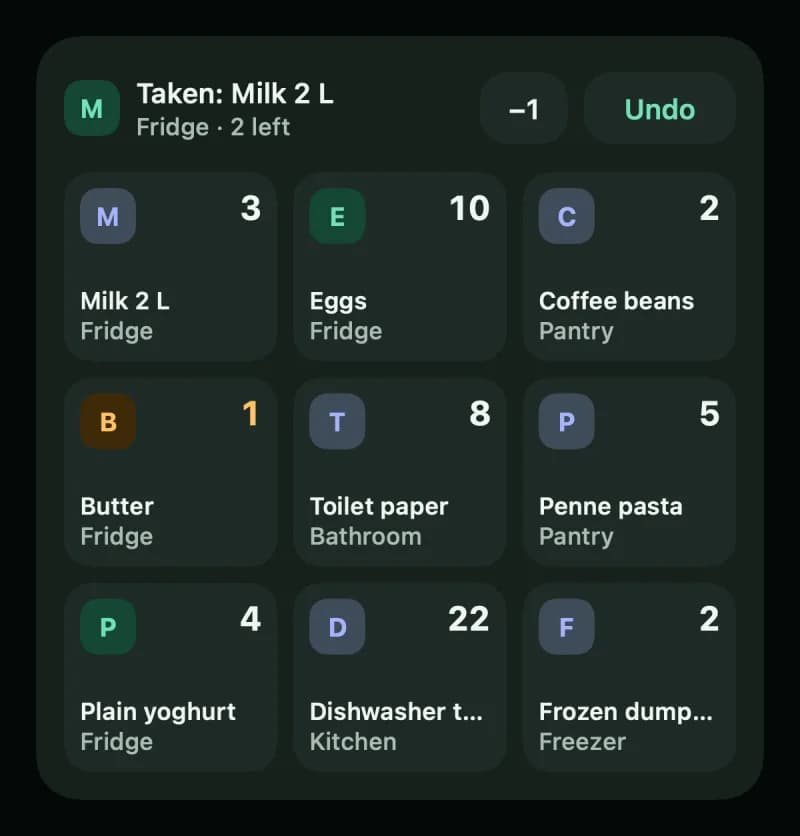
After a tap the top of the widget shows for a few seconds what happened, with Undo and −1 for when you take another piece.
- The last piece. When you take the last one, the widget says so, and if adding used-up products to the shopping list is on in Profile, the product goes straight onto the list (Show list).
- No connection. The change is saved on the phone and sent when you are back online. The widget shows how many changes are waiting.
- Shared stock. Your household sees the change in their apps, just like a scan.
In Stocker, Take out means the product has left your stock: used up, or opened and taken out of your supplies. More in When to take out a product.
The Scanner widget: the camera in one tap
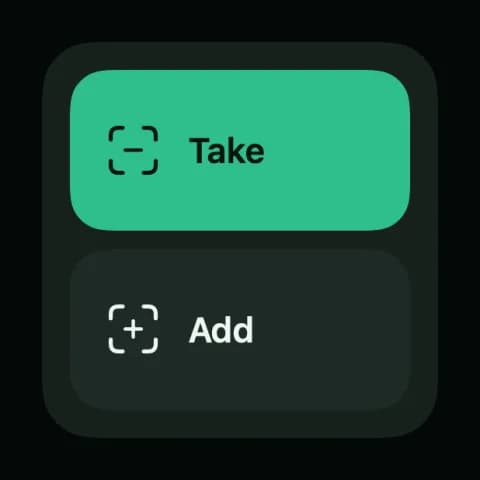
The small Scanner widget has two buttons: Take opens the camera to take products out, Add opens it to add your shopping. No looking for the scanner in the app and no switching modes.
Control Center, the Action button and Shortcuts
On iOS 18 Stocker also has controls for Control Center and the Lock Screen: Take by scanning, Add, List, Search and No barcode. You can put the same control on the Action button of an iPhone 15 Pro or later.
In the Shortcuts app and with Siri you can say, for example, “Take milk in Stocker”, “Add a piece in Stocker” or “Undo in Stocker”. Taking out by voice works like a tap on the widget, offline queue included.
Live Activity: your shopping list on the Lock Screen
When you open a shopping list with something left to buy, Stocker shows it on the Lock Screen and in the Dynamic Island. You can also start it with Start shopping under the list’s progress bar.
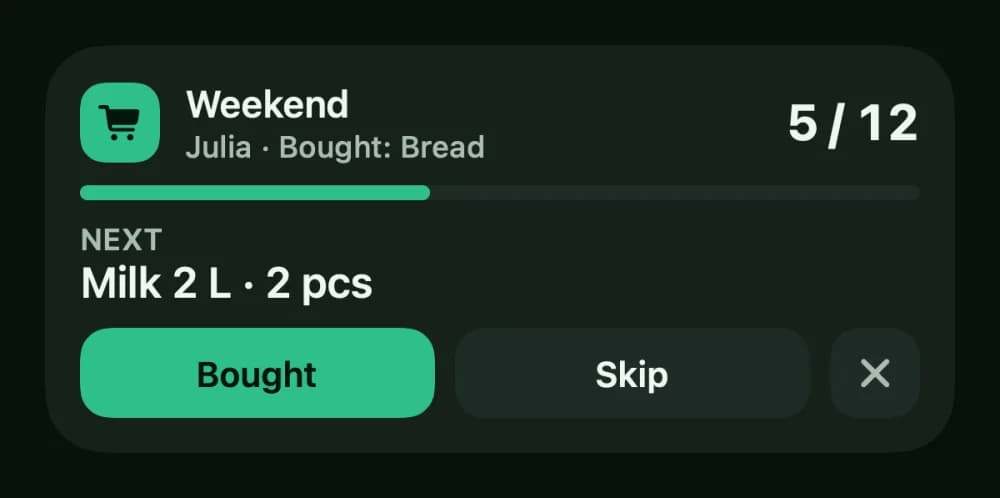
- Next shows the next item on the list with its quantity, for example “Milk 2 L · 2 pcs”.
- Bought checks it off without unlocking the phone, Skip moves on when something is not on the shelf, and ✕ ends shopping.
- Shopping together. When someone in your household checks something off on their list, you see it at once, with their name.
- Done. When everything is bought, the Live Activity says so and goes away after a quarter of an hour.
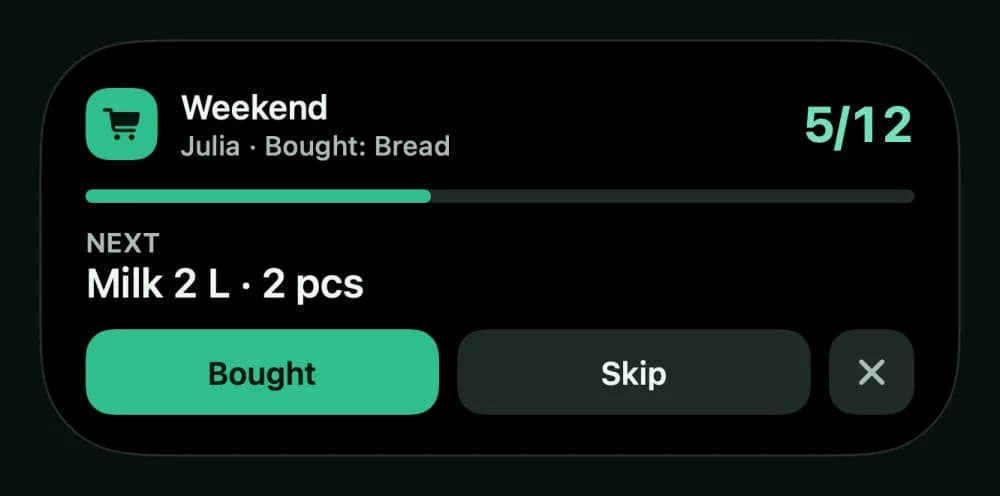
Without a connection Bought is not saved: the item goes back on the list and the Live Activity shows it in red, so nothing gets lost. How to share a list with your household is in A shared shopping list.
How to turn it on
- Update Stocker from the App Store and sign in to the app. Widgets use your account, so there is no second sign-in.
- Touch and hold an empty spot on the Home Screen, tap Edit, then Add Widget, and choose Stocker.
- Pick Quick take (small or large) or Scanner.
- The Live Activity works by itself. If you do not see it, check in the iPhone Settings, under Stocker, that Live Activities are on.
Widgets need iOS 17, Control Center controls iOS 18, and the Live Activity iOS 16.2 (its buttons iOS 17). Android does not have widgets yet. All of it is part of the Free plan, see Free or Premium.
Questions and answers
- Does the Stocker widget take out a product without opening the app?
- Yes. A tap on a Quick take tile takes one piece out of stock in the background. For a few seconds the widget shows how many are left and an Undo button.
- Which products does the Quick take widget show?
- The ones you take out most often across your home. The small widget shows 4 products, the large one 9.
- Does the widget work offline?
- Yes. The change is saved on the phone and sent when you are back online. The widget shows how many changes are waiting.
- How do I remove the shopping list from the Lock Screen?
- Tap ✕ on the Live Activity or End shopping on the list in the app. That list will not start by itself for the next 12 hours.
- Are Stocker widgets available on Android?
- Not yet. Widgets, Control Center controls, Shortcuts and the Live Activity are on iPhone for now.